

Connect an installation
There is one way to connect a self-hosted installation: get a code in the Opfield account and paste it into Opfield. The same code adds the installation to your account and connects it. Managed installations connect by themselves; see Managed installations.
Before you start
Section titled “Before you start”- You need an Opfield account at
https://account.opfield.devand, in Opfield, a user with thelicense:managescope. - Opfield must reach
https://account.opfield.devover outbound HTTPS. Nothing is opened on your side: the connection is a WebSocket that Opfield itself opens to the account.
Connect
Section titled “Connect”- In the Opfield account, open Installations, choose Connect an installation, then Get a code. For an installation that is already in your account (for example after a reinstall or a disconnect), open its page and choose Connect instead.
- Copy the code. It looks like
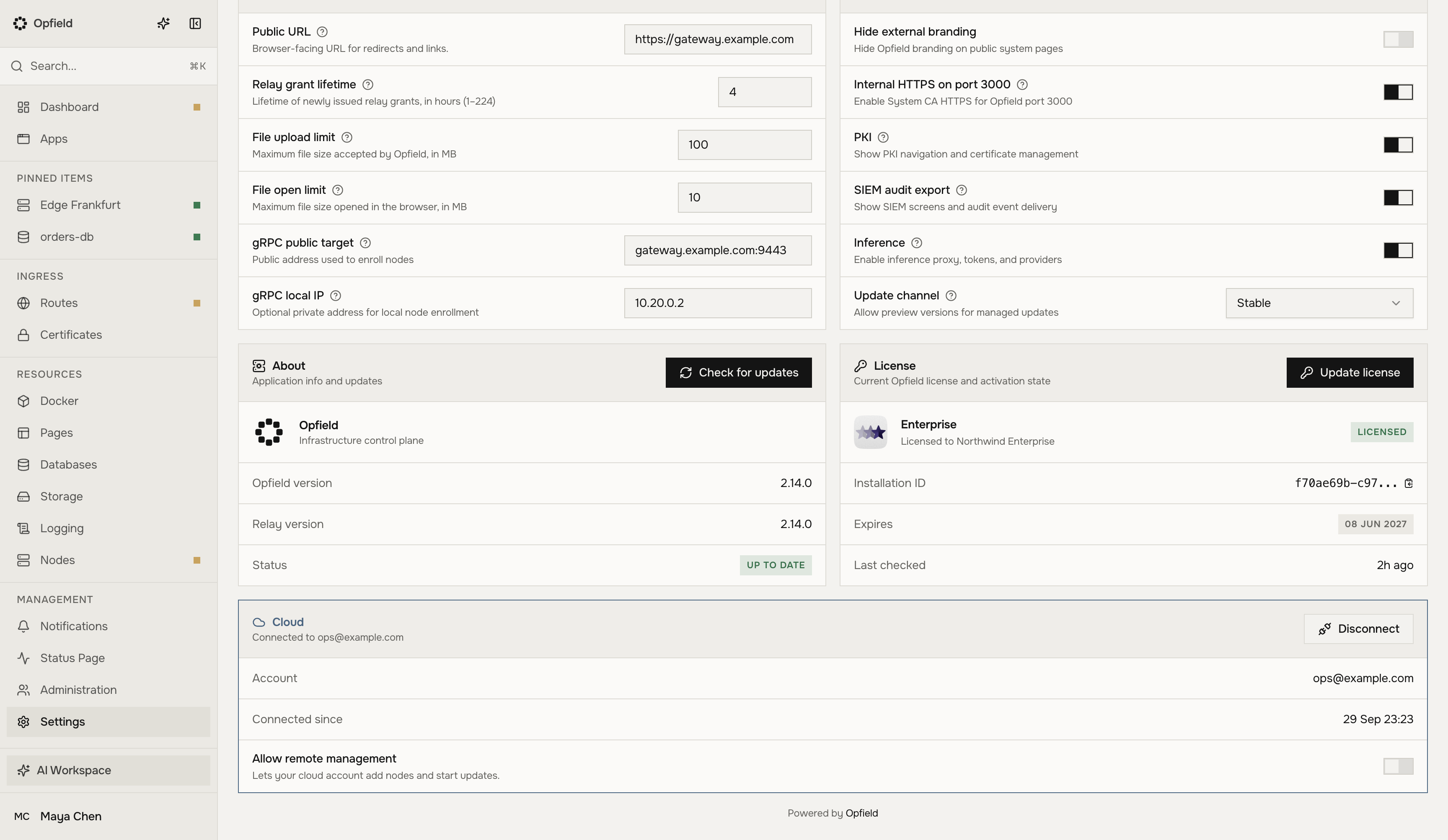
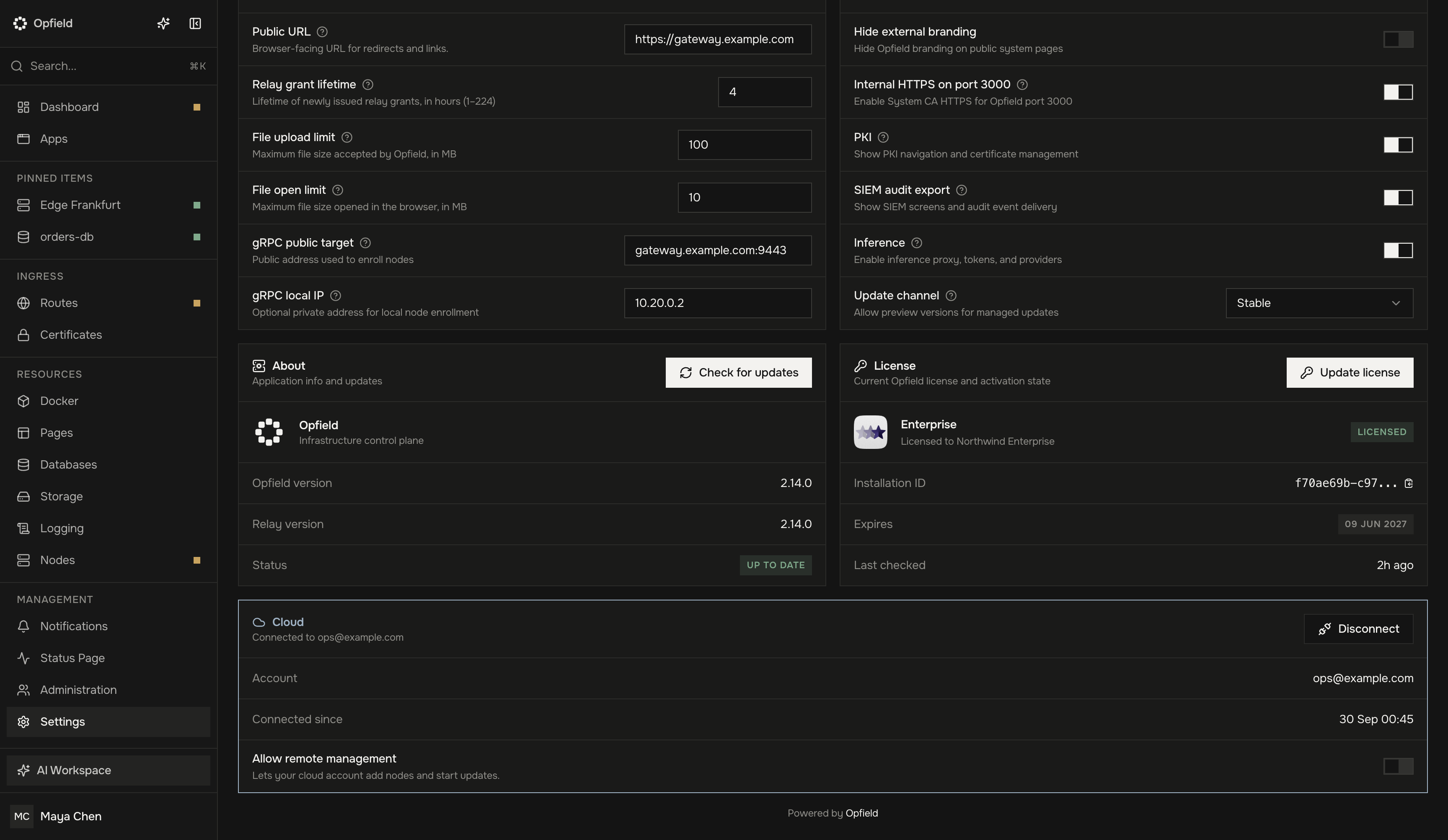
CLD-7K3M-Q9TX, works once, and expires after 10 minutes. Getting a new code replaces the previous unused one. - In Opfield, open Settings > General, paste the code into the Cloud block, and press Connect. Opfield also accepts the code without
CLD-, without dashes, or in lower case.
The Cloud block then reads Connected to the account’s email and shows Account and Connected since. The installation appears in your account a few seconds later.
If Opfield refuses the code:
| Message | What to do |
|---|---|
| This code is not valid or has expired | Get a new code in the account. |
| This code was created for another installation | You took the code from another installation’s page. Open this installation in the account and get its code there. |
| Too many attempts | Wait a few minutes before trying again. |
| Your cloud account could not be reached | Check that Opfield can reach https://account.opfield.dev over HTTPS, then try again. |
Allow remote management
Section titled “Allow remote management”Once connected, the Cloud block shows Allow remote management. It is off by default. While it is off, the account only reads the installation’s state, the logs of Opfield’s own containers, and its update status.
Turn it on, and confirm, to let the account also:
- make one-time node enrolment tokens with their install commands, as Nodes > Add Node does;
- start the Opfield update that Settings > General offers;
- issue a first-admin setup code, only before initial setup, while the installation has no users.
Turning it off takes effect at once and needs no confirmation. The switch belongs to the current connection: connecting again, or connecting to another account, starts with it off. A request the switch forbids is refused, and the account shows that remote management is off. Every request, allowed or refused, is in the audit log.
Sign in with the Opfield account
Section titled “Sign in with the Opfield account”A connected installation can let people sign in with their Opfield account. In Settings > Authentication > OIDC provider, choose Use Opfield account: Opfield asks the account for a sign-in client, shows “Waiting for your Opfield account…” with Cancel request, and when the account answers adds the provider “Opfield account” and turns OIDC sign-in on. This works with Allow remote management off. See Sign in with the Opfield account.
Switch to another account
Section titled “Switch to another account”While connected, choose Switch account, paste a code from the other Opfield account, press Connect, and confirm. The connection to the first account ends at once, and the installation connects to the account the code is from. Allow remote management starts off again.
Disconnect
Section titled “Disconnect”From Opfield, choose Disconnect in the Cloud block and confirm. Opfield asks the account to revoke the connection, then forgets it. If the account cannot be reached, Opfield forgets the connection anyway and warns you that the account may still list the installation: disconnect it in the account as well.
From the account, choose Disconnect on the installation’s page. The Cloud block then shows Disconnected by the account, with the account and the time, and Opfield stops connecting. Removing the installation from the account revokes its connection too.
Either way the installation keeps running. Its sign-in changes only if it used the Opfield account: Opfield forgets the sign-in client from the account, removes the “Opfield account” provider, and turns OIDC sign-in off. If no administrator could sign in without that provider, it stays, and Settings > Authentication > OIDC provider warns about it; give an administrator another sign-in method, then remove the provider. To connect again, get a new code in the account and paste it into the Cloud block: the button reads Connect, or Connect again after a disconnect by the account.
A managed installation cannot be disconnected or switched to another account, from either side.
From the API or MCP
Section titled “From the API or MCP”The REST API and MCP do the same as the Cloud block:
| Action | REST API | MCP tool | Scope |
|---|---|---|---|
| Read the connection status | GET /api/system/cloud/status |
get_cloud_status |
license:view |
| Connect with a code | POST /api/system/cloud/connect with { "code": "CLD-XXXX-XXXX" } |
manage_cloud with operation: "connect" |
license:manage |
| Allow or forbid remote management | POST /api/system/cloud/remote-management with { "enabled": true } |
manage_cloud with operation: "set_remote_management" |
license:manage |
| Disconnect | POST /api/system/cloud/disconnect |
manage_cloud with operation: "disconnect" |
license:manage |
The status is not_connected, connected, or disconnected_by_account. When connected, it also gives the account’s email, the account URL, the connection time, the state of the connection itself (online, connecting, or reconnecting with the last error), remote management, and the five latest requests the account sent. After a disconnect from Opfield while the account cannot be reached, the answer carries a warning. On a managed installation, connect, disconnect, and changing remote management are refused with 409 CLOUD_MANAGED.
A connection code is a secret: the AI assistant asks you to copy it from the account and does not repeat it in chat. See REST API and MCP.