

Apps
An app groups the resources of one application: containers and deployments, Compose projects, databases, storage, routes, and Pages projects. Each app has environments, such as production and staging, and every resource of the app belongs to one environment. The app page shows the health, monitoring, alerts, and activity of all of them together, and gives one place to run, stop, and promote the whole application.
Apps are available on every plan, including Community. Open Apps in the sidebar, right below Dashboard.
Create an app
Section titled “Create an app”- Open Apps and choose New App.
- Enter a name. It is shown in Apps and in the search.
- The app starts with one environment,
production, marked Production.
Add more environments with New → Environment on the app page or in the Environments block of the app’s Settings tab. An empty environment can do nothing yet: open its page, allow at least one node there with Allow node, then create resources in it or import existing ones. See Environments.
Exactly one environment is Production. The app’s health badge follows it, and the Production environment cannot be deleted. Mark as Production on another environment moves the marker.
Add resources
Section titled “Add resources”From the app page, New creates a container, deployment, Compose project, database, storage, route, Pages project, or container link directly in an environment. The create dialog has the app fixed, lets you choose the environment, and offers only the nodes that environment allows. When the environment allows no node of the needed type, the dialog says so and links to Allow a node.
To bring existing resources in, use Import existing in the section of that resource type on the app’s tabs. You can select several resources at once. A resource whose node the target environment does not allow is shown disabled with “Allow <node> in <environment> first”. From a normal list, the row menu Move to app… does the same for one resource.
To move a resource between environments, use Move to Environment in its row menu on the app page. To take a resource out of the app, choose No app in Move to app…. The resource keeps running in every case; only its grouping changes.
Container links and database or storage links have no environment of their own: they belong to the environment of the workload that uses them and are listed on the app’s Network tab.
Where app resources appear
Section titled “Where app resources appear”Resources of an app are not shown in the normal Docker, Routes, Databases, Storage, and Pages lists, their folder trees, or their counts. Those lists keep only what is outside apps. You still reach an app resource by:
- the app page;
- global search, which finds it and labels it “in <app> · <environment>”;
- its own page, which stays reachable by URL and shows Part of <app> · <environment> in the header;
- the node page, which keeps listing everything that runs on the node, with an app badge.
The Dashboard and node counts still include app resources. The REST API and MCP list endpoints return them too, with an app field and a filter that leaves app members out.
The app page
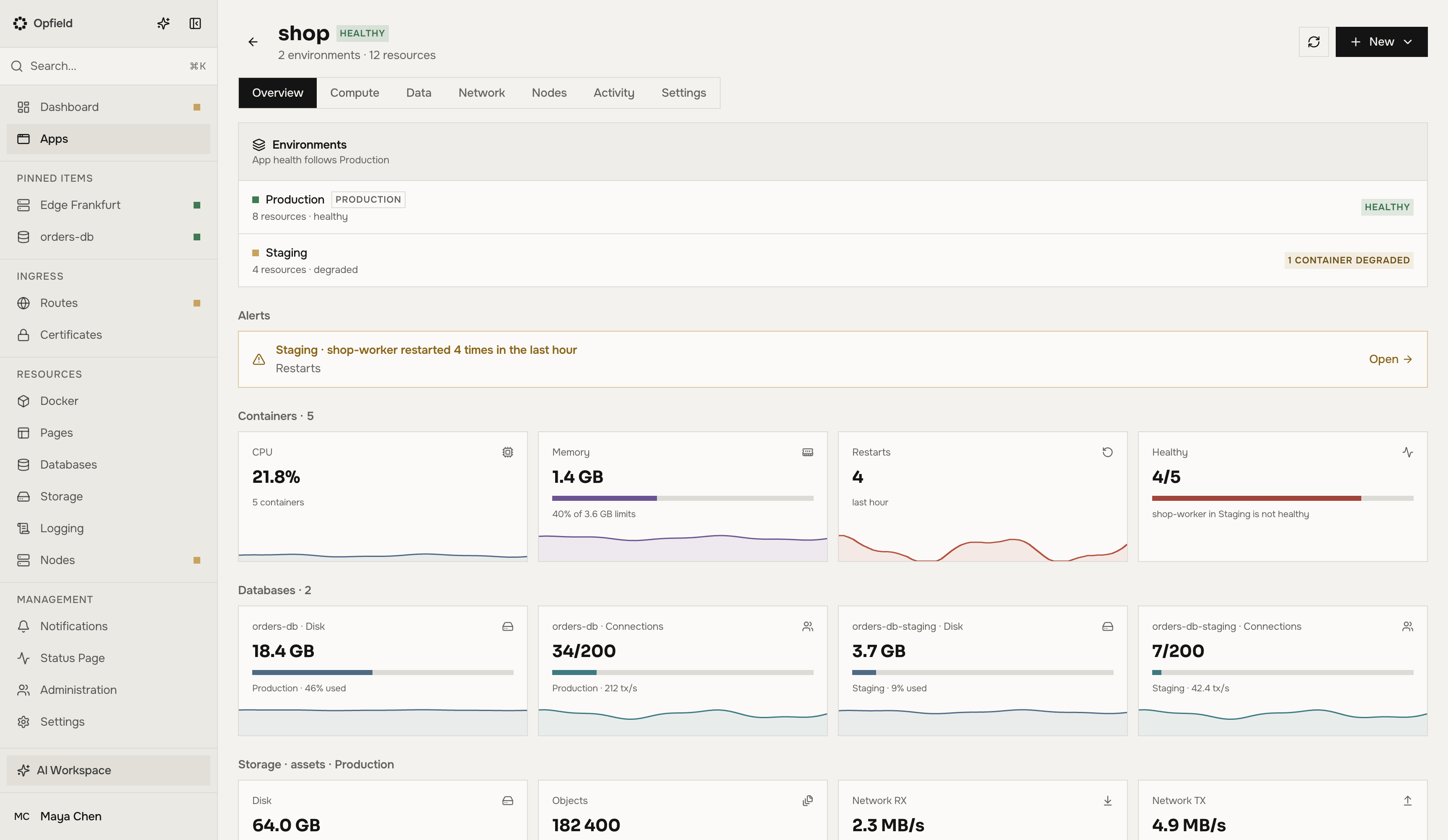
Section titled “The app page”The app page header shows the health of the app, the number of environments and resources, Refresh, and New. The tabs are:
| Tab | What it shows |
|---|---|
| Overview | One panel per environment with its health, open alerts, and tiles for containers, databases, storage, routes, Pages, and nodes, over the last hour or 24 hours |
| Compute | Containers, deployments, and Compose projects, grouped by environment |
| Data | Databases and storage, grouped by environment |
| Network | Routes, Pages projects, and container, database, and storage links |
| Nodes | The nodes each environment may use |
| Activity | Audit entries of the app and its resources, newest first |
| Settings | Name, maintenance for the whole app, environments, and the danger zone |
The rows on Compute, Data, and Network have the same columns and actions as the normal lists.
Overview raises alerts for a container that restarted 3 or more times in an hour, a database or storage disk at 85% or more, a route with 2% or more server errors over 15 minutes, and a resource that went offline. Each alert links to the resource.
Activity starts when a resource joins the app; earlier history stays in the resource’s own audit entries. You see the entries of the resources you may view.
Health
Section titled “Health”An environment is Failing when any of its resources fails, Degraded when any is degraded, and Healthy otherwise; an empty environment is healthy. Routes in maintenance and disabled routes do not count. The app’s health is the health of its Production environment, unless the app is stopped or isolated, which the badge shows instead. A database or storage that runs on several servers counts as degraded while it cannot fail over.
Permissions
Section titled “Permissions”Access to an app is granted on the app or on one of its environments. In Administration, add an access line In an app environment and choose “<app> · every environment” or “<app> · <environment>”. The roles on that line are:
| Role | Can do |
|---|---|
| Viewer | See the app, its environments, and their resources |
| Deployer | Viewer, plus promote into the environment |
| Developer | Deployer, plus manage the environment: variables, secrets, allowed nodes, maintenance, and moving resources in and out |
| Operator | Developer, plus shut down, start, and isolate |
A line for “every environment” also covers environments added later. The scopes behind it are apps:view, apps:create, apps:edit, apps:delete, apps:env:manage, apps:promote, and apps:operate; see Scope reference. Actions on a resource itself, such as restarting a container, still need that resource’s own scope.
Who sees an app
Section titled “Who sees an app”- With
apps:viewon the app, a user sees the whole app: every environment, Overview, and Activity, including entries about the app and its environments. Resources still need their own view scopes: lists, counts, and activity entries cover only the resources the user may view.apps:viewon one environment shows that environment in full. - Without
apps:view, an app is visible to anyone who can see one of its resources (a container, deployment, Compose project, database, storage, route, or Pages project) through their own grants, including a grant on the resource itself, on its environment’s folder, or on the app’s folder. Apps then appears in the sidebar. The user sees only the environments that hold such resources and, inside them, only those resources. Health, counts, Overview, Activity, and incident items cover those resources alone; Activity leaves out entries about the app and its environments.
Seeing an app through its resources gives no other rights. Allowed nodes, maintenance, variables and secrets, promotion, shutdown, and isolation still need their app scopes. Such a user does not get the Nodes tab, and an environment visible only through its resources opens no page of its own.
Delete an app
Section titled “Delete an app”Delete App in the danger zone of Settings removes the app. Its resources keep running and leave the app; they appear again in the normal lists. The environments’ variables, secrets, and allowed nodes are deleted, and access granted for the app and its environments is removed. Deleting a single environment works the same way for that environment. Neither is possible while the app or that environment is shut down or isolated.
API and MCP
Section titled “API and MCP”Everything on these pages is also available through the REST API under /api/apps and through MCP: list_apps, get_app, manage_app, manage_app_environment, manage_app_variables, manage_app_members, get_app_overview, get_app_activity, manage_app_incident, and promote_app_environment. To create a resource inside an environment through the API or MCP, pass the folderId that get_app returns for that resource type. list_apps and get_app report access for the app and for each environment: full with apps:view, members when it is visible only through its resources.