

App environments
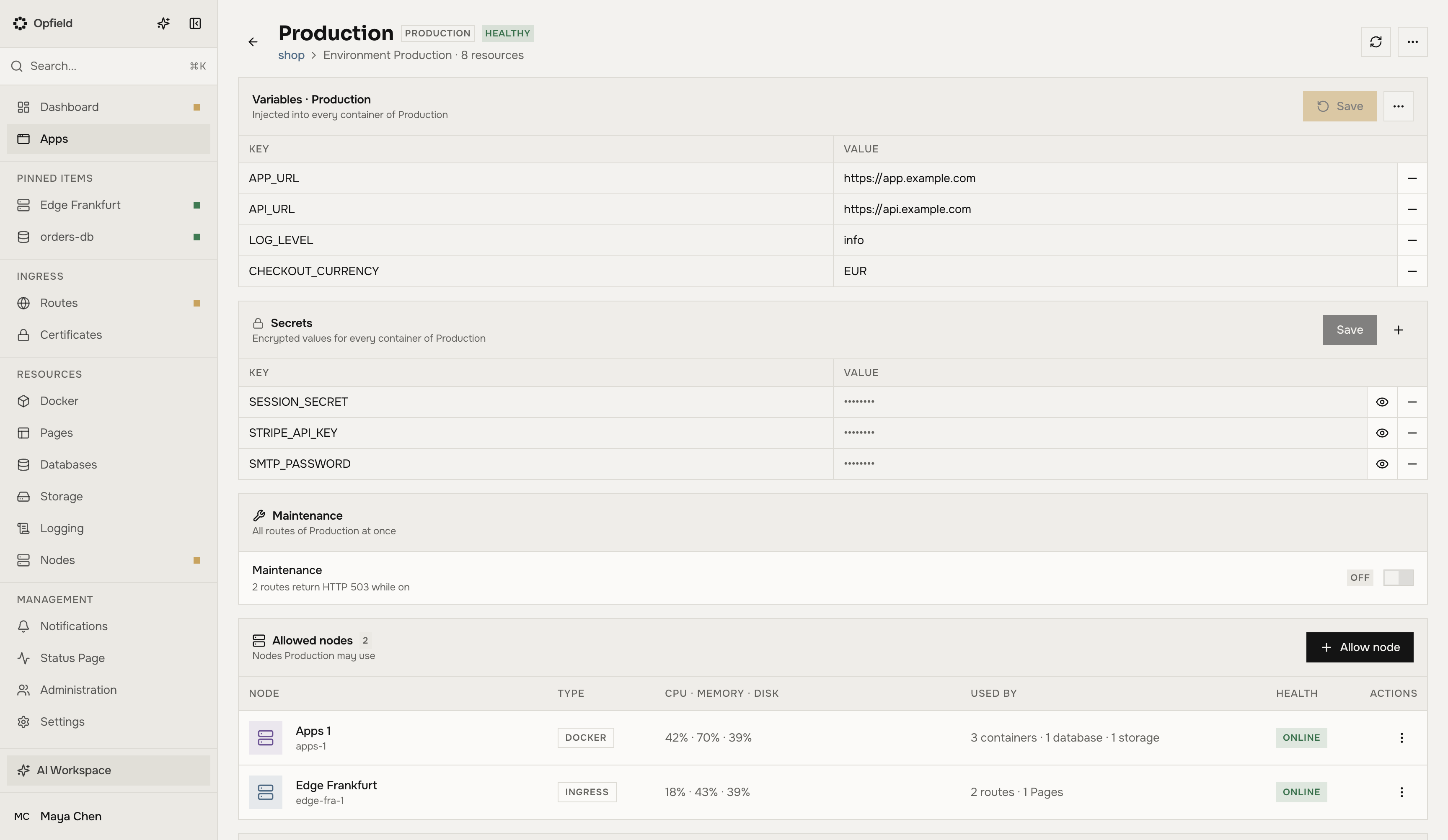
Every resource of an app belongs to one environment. An environment’s page holds what is shared by its resources: the nodes they may use, the variables and secrets every workload receives, maintenance for all its routes, and promotion from or to another environment. Open it from the Overview tab or the Environments block of the app’s Settings tab.
Allowed nodes
Section titled “Allowed nodes”An environment creates resources only on the nodes it allows. A new environment allows none. Use Allow node on the environment’s page to add a node; the Nodes tab of the app shows the allowed nodes of every environment.
The rule holds everywhere, not only in the console: the REST API, MCP, and the AI assistant refuse to create a container, deployment, Compose project, managed database, managed storage, route, or Pages project of the environment on a node it does not allow, and so do migration, Workload Availability, and restoring a backup into a new database. When the environment allows no node of the needed type, the request is refused with “no allowed node”; when it names a node that is not allowed, with “node not allowed”.
Removing a node from the list is allowed at any time. The confirmation shows how many resources of the environment run there; they keep running, but new ones can no longer be created on it.
Variables and secrets
Section titled “Variables and secrets”The Variables block sets values that every container, deployment, and Compose service of the environment receives. Secrets are the same, but write-only: after saving, only their keys and the time they changed are shown. Both are encrypted at rest. An environment holds up to 200 keys, each value up to 32 KiB, and a key is either a variable or a secret, not both. Pages projects get no variables.
When a key is set in several places, the more specific value wins, from lowest to highest:
- the image’s own
ENV; - environment variables;
- environment secrets;
- the resource’s own environment variables (or the Compose project’s variables);
- the resource’s own secrets.
A container’s Environment tab marks the keys that come from the environment. The environment’s values are never copied into the resource’s own settings, so changing them later changes what the resource receives. A Compose service gets every environment key it does not set itself; the values are not written into the Compose file.
Save, or Save and recreate
Section titled “Save, or Save and recreate”Running workloads do not restart when you change the environment’s values. After Save, the notice says how many workloads get the new values on their next recreate or deploy.
To apply them now, use More → Save and recreate N workloads. It recreates the workloads one at a time: containers are recreated, deployments go through their normal rollout, and Compose projects are applied. The dialog shows each workload’s progress and stops at the first failure, which it names; the workloads after it are not touched.
A workload that moves to another environment receives the new environment’s values on its next recreate, and the old environment’s keys are removed. A workload taken out of the app loses the environment’s keys on its next recreate.
Maintenance
Section titled “Maintenance”Maintenance on the environment’s page puts every route of the environment into maintenance at once: they return the maintenance page (HTTP 503) until you turn it off. Each route’s own maintenance setting is kept and applies again afterwards. The block shows Off, Maintenance, or how many routes have their own maintenance on while the environment’s switch is off.
Maintenance for the whole app, in the app’s Settings tab, does the same for every route of every environment and overrides each environment’s switch; the environment’s page then shows Overridden by the app. Turning it off restores each environment’s own state.
Only routes that forward to an upstream are affected, as with the route’s own switch. A route’s page shows where its maintenance comes from.
Maintenance access code
Section titled “Maintenance access code”To let one person through while the routes are in maintenance, open the environment’s (or the app’s) actions menu and choose Create Maintenance Access Code. The code is valid for 5 minutes and opens each route of that environment (or the whole app) that is in maintenance once. Share it only with the person who needs access. The routes must run on an ingress node that supports access codes, and a code never works while the app is isolated. See Access lists and maintenance for how a code is entered.
Promote
Section titled “Promote”The Promote block runs in another environment exactly what runs in this one, without building anything again. It is how a tested staging goes to production.
- On the source environment’s page, choose Promote to <environment>. With more than two environments, select the target first.
- Step 1 lists what runs in the source and how it compares with the target: Same, Changed, or Not promotable with the reason. Switch off what should not be promoted.
- Step 2 shows what happens in the target for each item.
- Confirm. The items run one after another; a failure does not stop the others. The dialog shows the progress of each.
What is promoted:
- Containers and deployments: the image by its digest, so the target runs byte-for-byte the same image. A deployment uses its normal rollout. A Git-built image is promoted as the same build artifact, with no new build.
- Compose projects: the source revision’s Compose file, with each service’s image pinned to the digest that runs in the source. The target keeps its own variables and secrets.
- Pages projects: the source’s active deployment is copied into the target project and becomes active there.
Databases, storage, their data, and schema are never promoted.
Resources are paired by name: the same name, or the source name without a trailing -<environment> (shop-api-staging in staging pairs with shop-api in production). A source resource without a pair is listed as not in the target. A pair of different types, such as a deployment and a container, is not promotable.
The preview is checked again when you confirm; if something changed meanwhile, Opfield asks you to review it again. Each promotion is recorded on the app’s Activity tab with what changed, and the environment’s Promote block shows when something was last promoted into it.
Permissions
Section titled “Permissions”Managing allowed nodes, variables, secrets, maintenance, and access codes needs the Developer role on the environment (apps:env:manage). Promoting needs the Deployer role on the target environment (apps:promote). Maintenance for the whole app needs the Operator role on the app. The environment page itself needs apps:view on the environment; a user who sees the environment only through its resources is taken back to the app page. See Apps permissions.